A week ago we introduced a new article button to the wiki. This button is available for all logged-in users and will dramatically speed up the time it takes to get writing a new article. We have listened to your feedback about the intense structured setup required to make a new obby article, and we are proud to announce the new Article Flow!
This custom-built extension was designed to spare as little detail from making a page as possible, and even makes our existing RobloxMediaExtractor obsolete (although you may still use it if necessary).
The release coincided with our recent domain migration so you may have missed it. If you are unaware, there’s a new plus (+) button at the top left of the wiki next to the menu drawer button. Click it to open the new article flow.
We designed the article flow modal to be as seamless as possible. From the start, it looks like a simple article creation modal, but it’s so much more. The first page opens up with your desired article title and some suggestions or wanted pages.
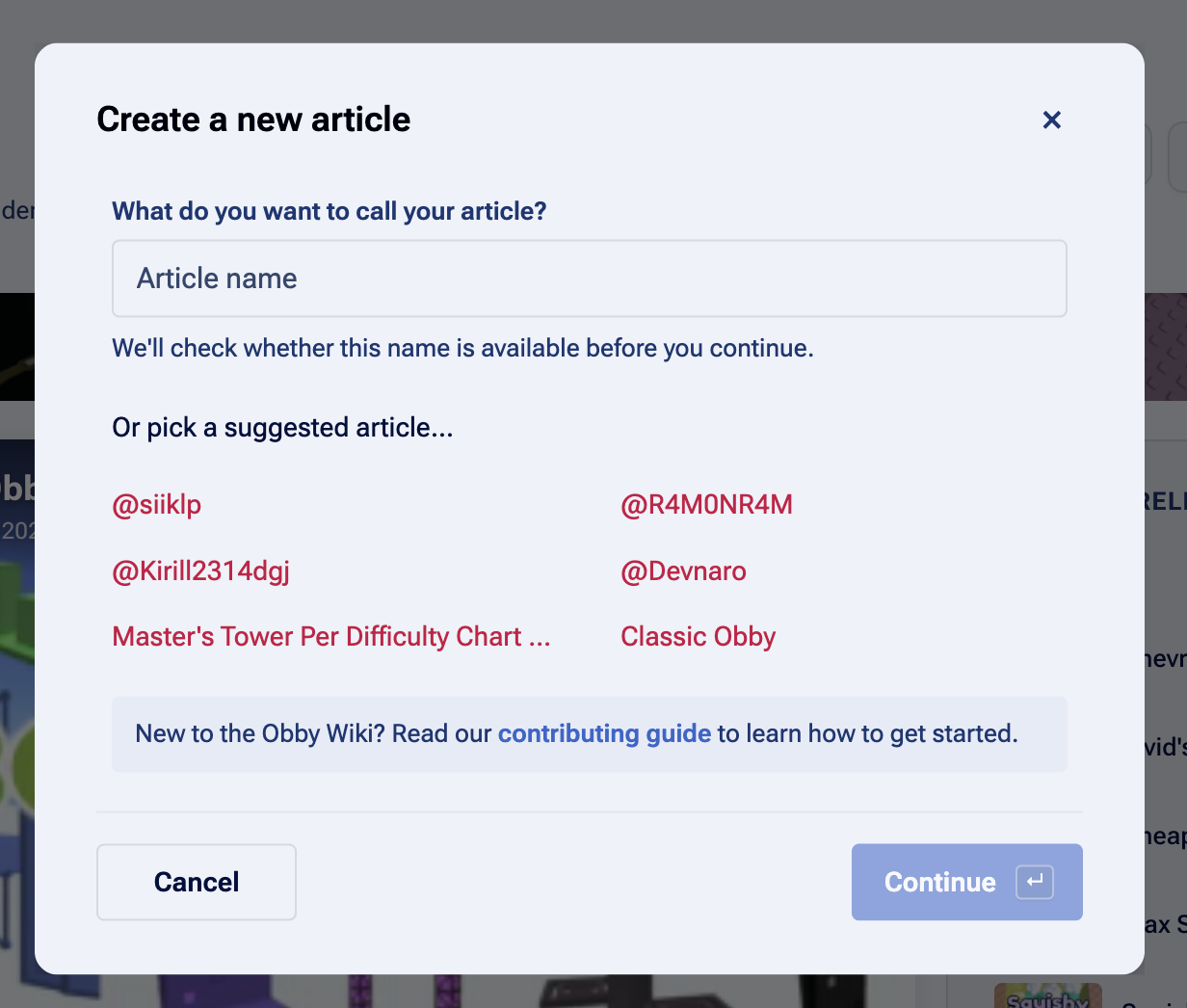
You can either click one of the suggestions to advance right away or type your own article title in and the modal will check to see if it is available for you. This is where the modal reveals itself to be far better than even Fandom’s new page modal.
Entering a valid article name will expand the modal to reveal layout templates. Select from a blank article, an obby article, a player/developer article, or a group/studio article, with more coming soon!
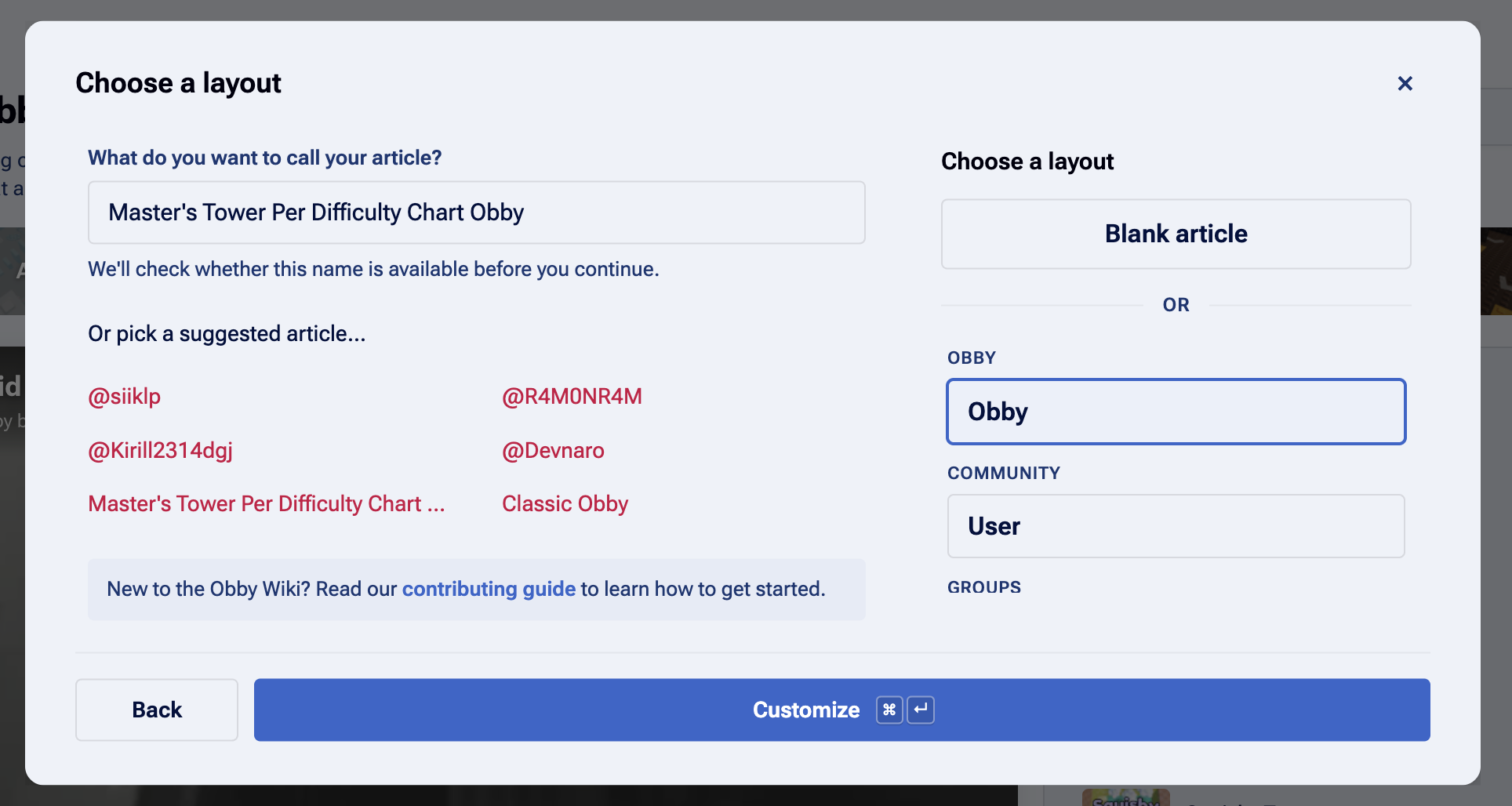
Based on what you selected or wrote in the article box, the modal will pick the perfect layout match for your article if it knows. Just click the ‘Customize’ button to continue to the next page of the modal.
The next page it gives us is to choose a variation of that layout. Because in this example we chose the Obby layout and our article’s name has ‘Tower’ in it, it’s going to recommend the ‘Tower’ variation. While this is technically valid since the game does contain towers, as a human editor we can see that the best sub-genre is probably a Difficulty Chart Obby. After you have selected your layout variation correctly, click ‘Next’ to proceed.
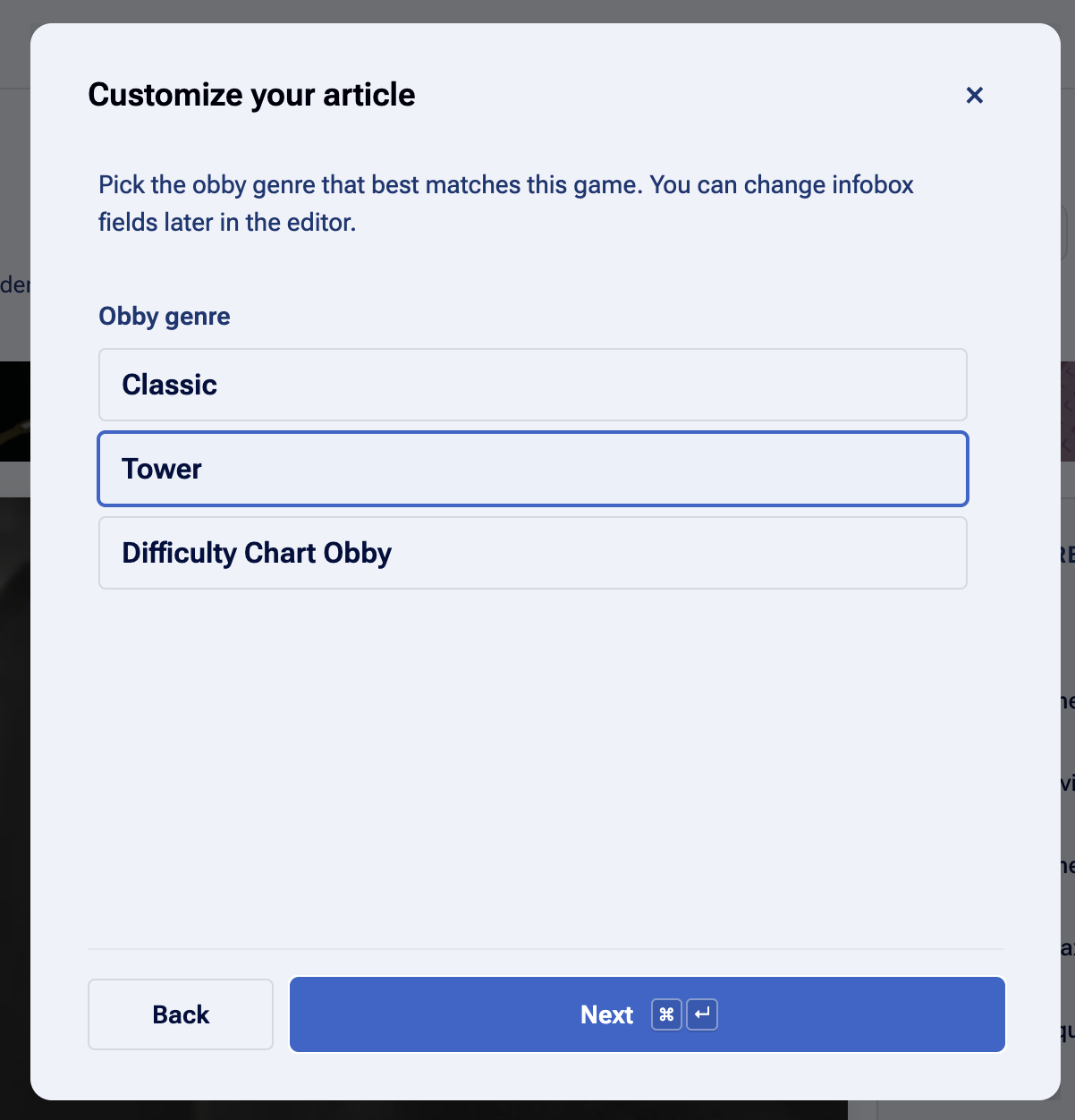
Currently, the Obby layout only has three variations, but we are working hard to expand that to all common sub-genres.
Next, depending on your layout type, you may be prompted to insert an ID. In this case, we selected the Obby layout, so we’ll be asked for a root/start place ID:
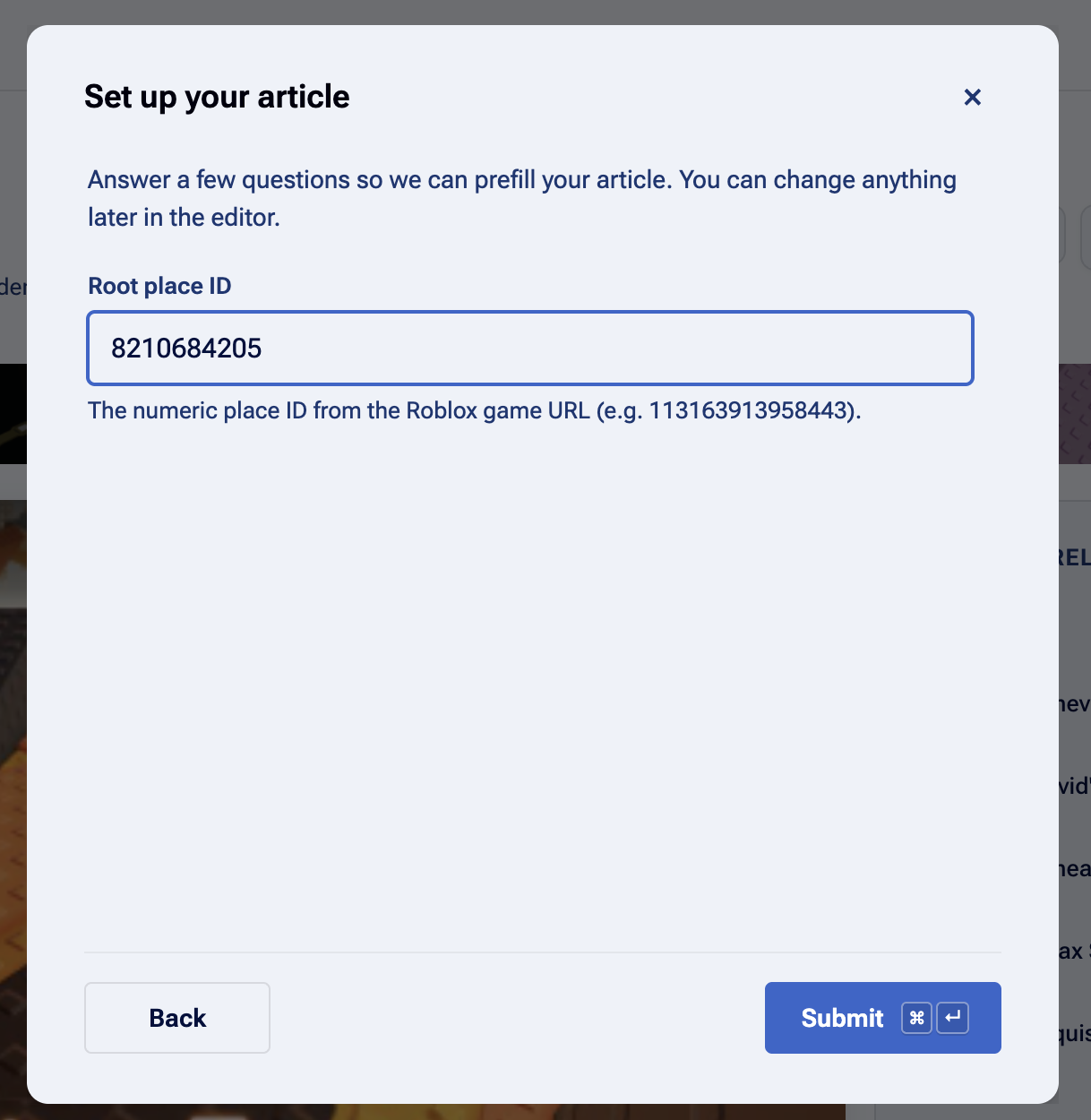
Just input the correct ID and submit it and it’ll do all the work fetching Roblox’s metadata for the details.
Next, is the detail you’ll have to submit to get a worthwhile boilerplate. Because, in this example, we selected the Difficulty Chart Obby variation, we’ll get prompted for the stage and difficulty count. We know that (Master’s) Tower Per Difficulty Chart Obby has 360 stages across 12 towers (or 12 difficulties), we’ll input that into the questions. We may also know more information like the tier of the obby, its maturity rating, or the development groups’s social media information. If so, we’d add that to the page.
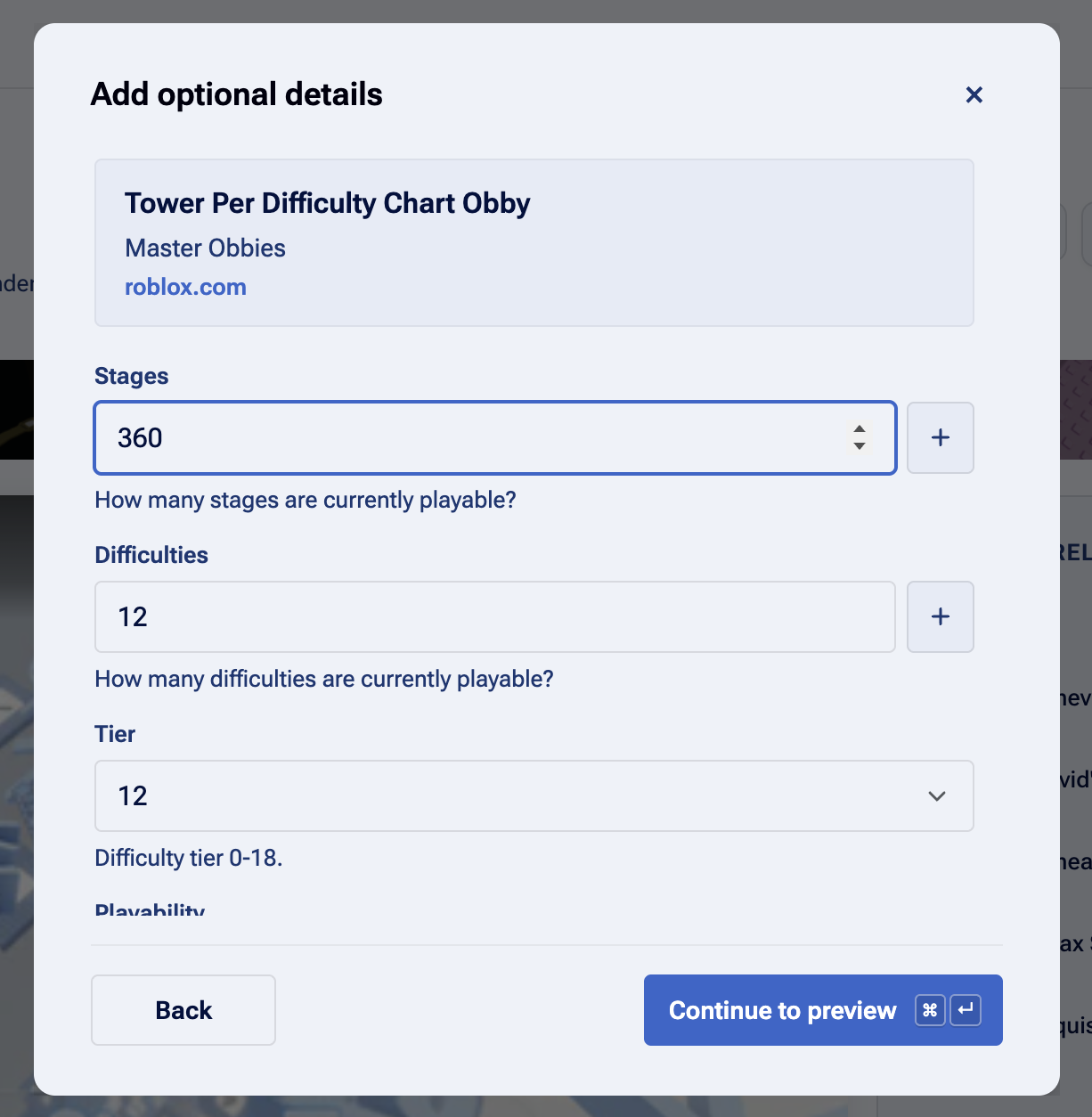
If Master’s Tower Per Difficulty Chart Obby was unfinished, we would be able to add the total number of planned stages by clicking the plus button next to the stages and difficulties section.
From here, click ‘Continue to preview’ in order to proceed.
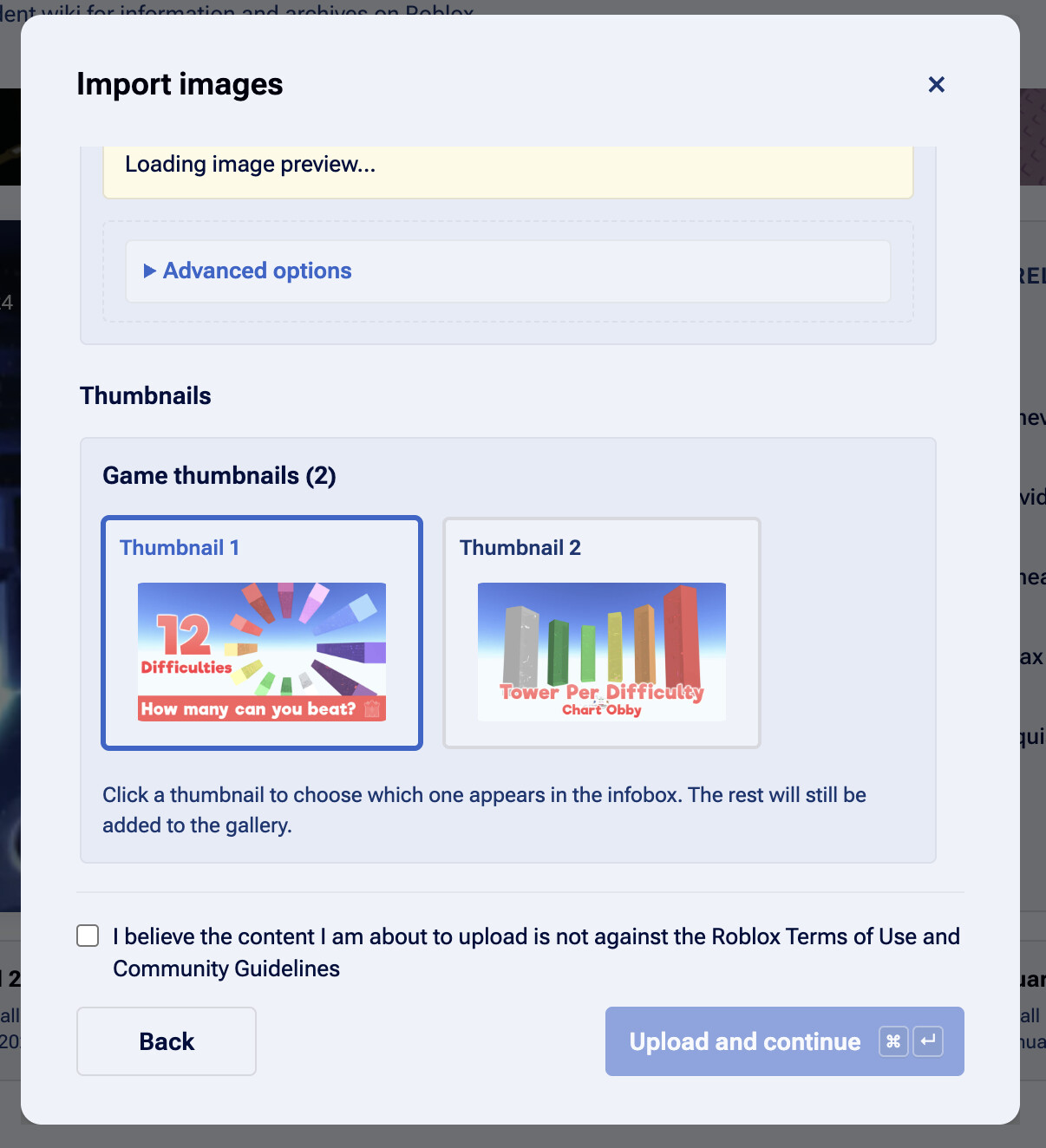
Here is where the flow reduces complexity dramatically for you, the contributor. It will automatically collect the game’s icon and its thumbnail for you. All you have to do from here is review the images to make sure they are appropriate and simple click the ‘Upload and continue’ button. You may also override the default primary thumbnail selection if another thumbnail is available by clicking on it. In some cases, you may be able to override the filename that will be uploaded as well, but this is not required.
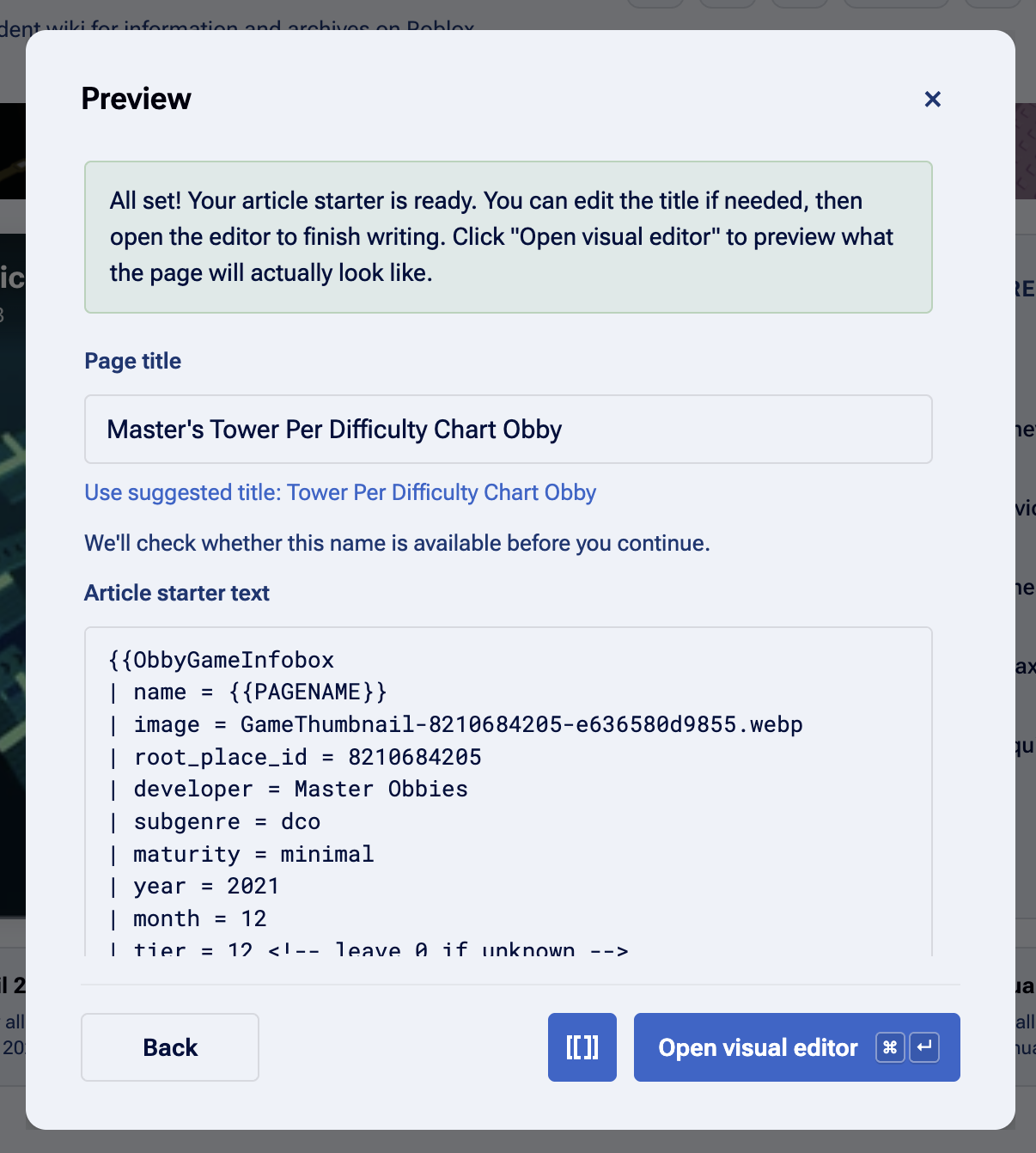
And that’s it! In just a few short steps, you can preview and edit your new article just like that. The flow fills in previously difficult information in seconds and constructs the boilerplate right for you. You can view the wikitext or open it in the visual or source editor. And if you wish, you can use the suggested title. We used "Master’s Tower Per Difficulty Chart Obby” as the article name, but the actual game’s name is “Tower Per Difficulty Chart Obby” on Roblox, so we can click that to change it instantly.
And that’s it! The example article has already been saved. You can view the permanent link at Obby Wiki Permalink #4553 or the live article here with any edits contributors have made since. Because this was a special game that did not directly fit into any one category/variation, we may have to make manual edits to the template, but that is expected. This is not a replacement of making articles, but a significant time saver.
Consider signing up for an Obby Wiki contributor account today!
Thank you for reading.
Technical fact-list:
- The ObbyWikiArticleFlowVue extension is currently closed source and only works on the latest MediaWiki version (1.45)
- ObbyWikiArticleFlowVue is written in Vue and our first extension to be written in Vue!
- Any progress abandoned from the modal is not saved and only the final result (if you choose to publish it) will be saved to the wiki.